 desktop carpetGet it free
Desktop Carpet › Aesthetic desktop ideas
Guide · Windows & Mac
Aesthetic desktop ideas for Windows and Mac
An aesthetic desktop has less to do with expensive gear than with what you take away: the clutter, the clashing colors, the forty icons you never open. These seven ideas work on Windows 11, Windows 10 and macOS, and most of them take a minute.
1. Start with a calm wallpaper
Busy photos fight with everything you put on top of them. A wallpaper with a soft gradient, a texture or a lot of sky gives your eyes somewhere to rest and leaves room for whatever sits on the desktop.
- Windows: Settings › Personalization › Background.
- Mac: System Settings › Wallpaper (on macOS 12, System Preferences › Desktop & Screen Saver).
Pick two or three colors from the wallpaper and let them guide the rest of the ideas below.
2. Clear the icons
Nothing breaks the look faster than a column of screenshots and installers. Both systems can hide desktop icons without deleting anything: see how to hide desktop icons on Windows 11 and 10 and how to hide desktop icons on a Mac.
3. Lay down a rug
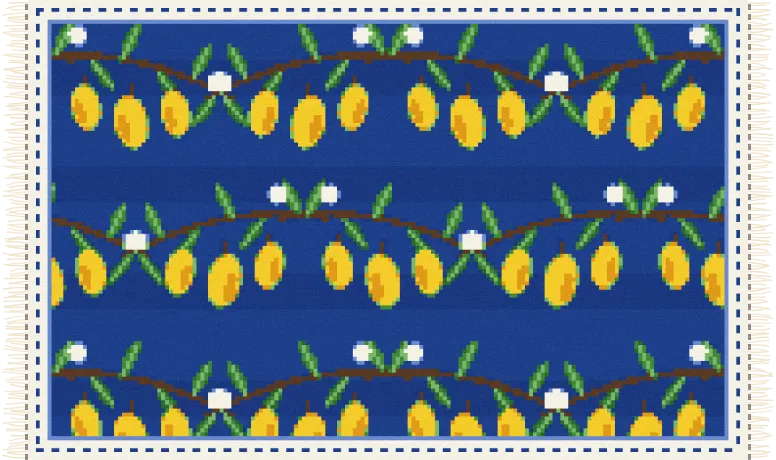
A rug does on a desktop what it does in a room: it pulls everything together. Desktop Carpet lays a real-looking rug over your wallpaper and sweeps your icons underneath it. Lift a corner to reach your files, let go and it drops back. Your files never move on disk.
Choose one that echoes your wallpaper's colors:
- Blue and gold: Amalfi Lemons or Majolica from the Mediterranean Pack.
- Navy and cream: Seigaiha Waves or The Great Wave from the East Asia Pack.
- White and cobalt: Iznik Tulips from the Türkiye Pack, or Nain from the Persia Pack.
- Deep and moody: Midnight or Tabriz After Midnight from the classics.
There are 321 rugs in the app, and all of them are free. See them all.
4. Match your accent color
The accent color tints buttons, highlights and menus. Set it to one of your wallpaper or rug colors and the whole screen looks planned.
- Windows 11: Settings › Personalization › Colors › Accent color. Choose Manual and pick a color.
- Windows 10: Settings › Personalization › Colors, then pick a color under Choose your accent color.
- Mac: System Settings › Appearance › Accent color (on macOS 12, System Preferences › General).
5. Hide the taskbar or the Dock
Letting the taskbar or Dock slide away when you're not using it gives the wallpaper the whole screen. Move the pointer to the edge and it comes back.
- Windows 11: Settings › Personalization › Taskbar › Taskbar behaviors › Automatically hide the taskbar.
- Windows 10: Settings › Personalization › Taskbar › Automatically hide the taskbar in desktop mode.
- Mac: System Settings › Desktop & Dock › Automatically hide and show the Dock (on macOS 12, System Preferences › Dock & Menu Bar).
6. Pick dark or light on purpose
Dark mode suits deep, saturated rugs and night-time wallpapers; light mode suits ivory and pastel ones. Whichever you choose, use the same everywhere.
- Windows 11: Settings › Personalization › Colors › Choose your mode.
- Windows 10: Settings › Personalization › Colors › Choose your color.
- Mac: System Settings › Appearance, then Light, Dark or Auto.
7. Keep your files one step away
A tidy desktop is only worth it if you can still find things. Search is the fastest way: press Win + S on Windows or Command-Space for Spotlight on a Mac and type a few letters of the file name. Your desktop files also live in the Desktop folder in File Explorer and Finder. With a rug, they're right where you left them: lift the corner.
Questions
What makes a desktop look aesthetic?
Fewer things, and colors that belong together. A calm wallpaper, no icon clutter and two or three matching colors do most of the work.
Does a clean desktop make my computer faster?
Not noticeably on a modern computer. The real gain is that you find things faster and the screen is nicer to look at.
Do any of these ideas delete my files?
No. They only change how your desktop looks. Hidden icons and files under a rug stay in your Desktop folder.
Does Desktop Carpet work on both Windows and Mac?
Yes. It runs on Windows 10 and 11 and on macOS 12 or later, and one key works on both. It's free: no card, no account and nothing that runs out.